Hypertext links
Internal Links
A hyper text link allows a browser of the document to navigate either: to a new point in the document or to navigate to a different document.
Internal links allows a browser to a named point in a document which is specified with the attribute ID. For example:
| Displayed by browser | HTML markup required |
|---|---|
here | |
To effect a transfer to a named anchor point, the HREF form of the anchor tag is used. For example:
| Displayed by browser | HTML markup required |
|---|---|
| Transfer to anchor | |
The # before the name of the hypertext link tells the browser that the link is to a named point in a document. As no document name is specified before the # the hypertext link is to a point in the current document. It is usual for the browser to visibly highlight the hypertext link.
External (Absolute) Links
Hypertext links may also link to other documents, in which case the href component names the document. If the file is held on another machine then a URL (Uniform Resource Locator) is used to describe the location of the document. For example:
| Hyper text link to the file file.html | Hyper text link to the file file.html held on another machine using a URL |
<a href="file.html"> Name </a> | <a href="http://host/file.html"> Name </a> |
| The title attribute shows information about the link as a tooltip text when the mouse moves over the element. Try this in the link below: title="Go to file" is shown as a tooltip text when the mouse moves over the element. | <a href="http://host/file.html" title="Go to file"> Name </a> |
For example:
| Displayed by browser | HTML markup required |
|---|---|
| Link to module schedule | <a href="schedule.html"> Link to module schedule </a> |
| University of Westminster | <a href="http://westminster.ac.uk"> University of Westminster </a> |
To go to a named point in a file the format of the anchor is:
| Hyper text link to the file | file.html at point mark Hyper text link to the file file.html at point mark held on another machine using a URL |
<a href="file.html#mark"> Name </a> | <a href="http://host/file.html#mark"> Name </a> |
Relative Links
A relative link in HTML is a hyperlink that refers to a file or resource relative to the current document's location. Unlike absolute links, which include the full URL (e.g., https://example.com/page.html), relative links only specify the path relative to the current page.
- Why Use Relative Links?
- Shorter and easier to manage than absolute URLs.
- Works well within the same website (e.g., linking between pages in the same project).
- More flexible when moving files between different domains
Types of Relative Links
| Types of Relative Links | HTML markup Required |
|---|---|
Linking to a File in the Same DirectoryIf about.html and index.html are in the same folder structure: you can link to about.html like this → |
<a href="about.html">About Us</a"> |
Linking to a File in a SubdirectoryIf contact.html is inside a subfolder (pages/), like the following file structure: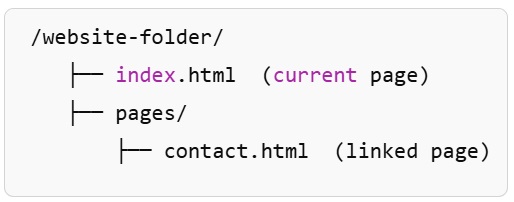 you can link to about.html like this → |
<a href="pages/contact.html">Contact Us</a"> |
Linking to a File in the Parent DirectoryIf the current file (about.html) is inside a folder, like the following file structure: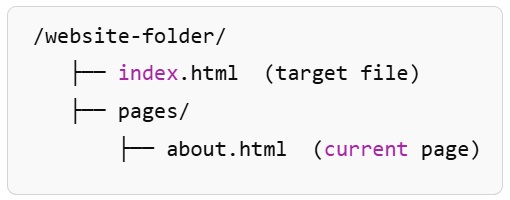 and you need to link back to index.html, use ../ (go up one level) to link to index.html like this → |
<a href="../index.html">Back to Home</a"> |
Linking to a File in a Higher-Level DirectoryIf a file is two levels up, like the following file structure: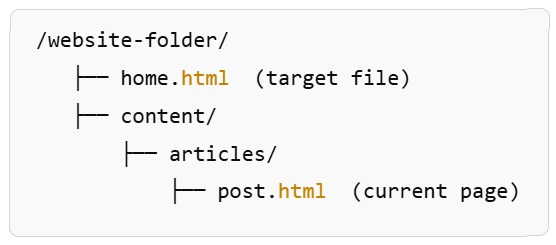 use ../../ (move up twice) to link to home.html like this → |
<a href="../../home.html">Go to Home</a"> |
Linking to an Image Using a Relative PathIf an image is saved in folder with similar structure like this: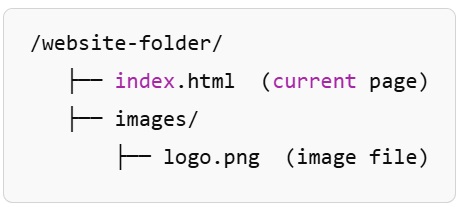 then you need to direct the browser to look for logo.png inside the images/ folder like this → |
<img src="images/logo.png" alt="Website logo"> |
| Relative Link Type | Example | Description |
|---|---|---|
| Same directory | <a href="page.html">Go</a> |
Links to a file in the same folder. |
| Subdirectory | <a href="folder/page.html">Go</a> |
Moves down into a folder. |
| Parent directory | <a href="../page.html">Go</a> |
Moves up one folder level. |
| Higher-level directory | <a href="../../page.html">Go</a> |
Moves up multiple levels. |
| Relative image path | <img src="images/logo.png"> |
Finds an image in a folder. |
HTML Links - The target Attribute
By default, the linked page will be displayed in the current browser window. To change this, you must specify another target for the link.
The target attribute specifies where to open the linked document.
The target attribute can have one of the following values:
- _self - Default. Opens the document in the same window/tab as it was clicked
- _blank - Opens the document in a new window or tab
- _parent - Opens the document in the parent frame (it makes sense to use when you are using iframe).
- _top - Opens the document in the full body of the window (it makes sense to use when you are using iframe).
| Example | HTML markup Required |
|---|---|
| Use target="_self" to open the linked URL in the same window/tab as it was clicked. Go to University of Westminster |
<a href="https://www.westminster.ac.uk" target="_self">Go to University of Westminster</a> |
| Use target="_blank" to open the linked URL in a new browser window or tab. Go to University of Westminster |
<a href="https://www.westminster.ac.uk" target="_blank">Go to University of Westminster</a> |
Using <nav>
The <nav> is a HTML5 semantic element used to declare a major block of navigation links (such as menus and tables of contents) in a HTML document. Links in a <nav> element may point to other webpages or to different sections of the same webpage.
Although it does not change the display, by using <nav> as a way to label our navigation links it helps screen reading software to correctly identify primary navigation areas in the HTML document.
In this example, a <nav> block is used to contain an unordered list (<ul>) of links. With appropriate CSS, this can be presented as a navigation bar:
| Displayed by browser | HTML markup required |
|---|---|
|
Look also the example in lists for navigation
URL (Uniform Resource Locator)
The URL is used to specify the location of a file held on a remote machine. This is composed of several distinct components. For example, the URL http://host/file.html is composed of the following components.
| URL Component | Meaning |
|---|---|
| http | The protocol that is to be used to access the file. In this case the HyperText Transfer Protocol. |
| host | The name of the machine, this can be either a symbol name such as rhino.cscs.ac.uk or a numeric IP (Internet Protocol) address such as 161.74.92.102. |
| file.html | The path name of the file to which the hypertext link is to be made. This is relative to the base directory in which web pages are held. The location of this directory htdocs is defined by the person who has set up the web server. |
public_html in the user's home directory. For example, the file home.html placed in the directory public_html in w1234567's home directory on the server machine compute0.westminster.ac.uk, can be accessed with the URL https://w1234567.users.ecs.westminster.ac.uk/home.htmlNote in the example above: The school now uses
https and w1234567 is a username. https stands for HyperText Transfer Protocol Secure (provides authentication of the web site and associated web server that one is communicating with and bidirectional encryption of communications between a client and server)Inserting an e-mail address
An e-mail address may be inserted into the document using a special form of the anchor markup tag. A user selecting this will be presented with a form on which to prepare their message for eventual sending in this case to the e-mail address: coloma@westminster.ac.uk
| Displayed by browser | HTML markup required |
|---|---|
| Mail me | |
Automatic redirect
A page may contain a meta tag that will cause an automatic redirection to another URL after a specific time interval. For example, the tag
<meta http-equiv="refresh" content="3;url=http://domain/directory/file.html">http://domain/directory/file.html after 3 seconds.<head>Insertion of iFrames
An iFrame is used to display a Web page within another Web page.
| HTML markup required |
|---|
|
For example, here's an iframe showing the tutorial 3:
Review Questions
- Question 1 - Write the HTML for a link to scroll to the paragraph with the id=myId?
- Question 2 - Write the HTML for a link to the email address w1234567@my.westminster.ac.uk
- Question 3 - Write the HTML to add an automatic redirect to http://westminster.ac.uk after 2s
- Question 4 - Write the HTML to link to Google Maps and open it in a new page