Some common uses of events
- When a user clicks the mouse
- When a web page has loaded
- When an image has been loaded
- When the mouse moves over an element
- When an input field is changed
- When an HTML form is submitted
- When a user strokes a key
We will only cover aspects of the DOM that we need to read/change form element values/settings, document content and document style attributes, so we will not cover the DOM in full
The Document Object Model is a platform- and language-neutral interface that will allow programs and scripts to dynamically access and update the content, structure and style of documents. The document can be further processed and the results of that processing can be incorporated back into the presented page. This is an overview of DOM-related materials here at W3C and around the web. (W3C)
The HTML DOM model is constructed as a tree of Objects, created by the browser, so we can quickly find HTML elements using JavaScript
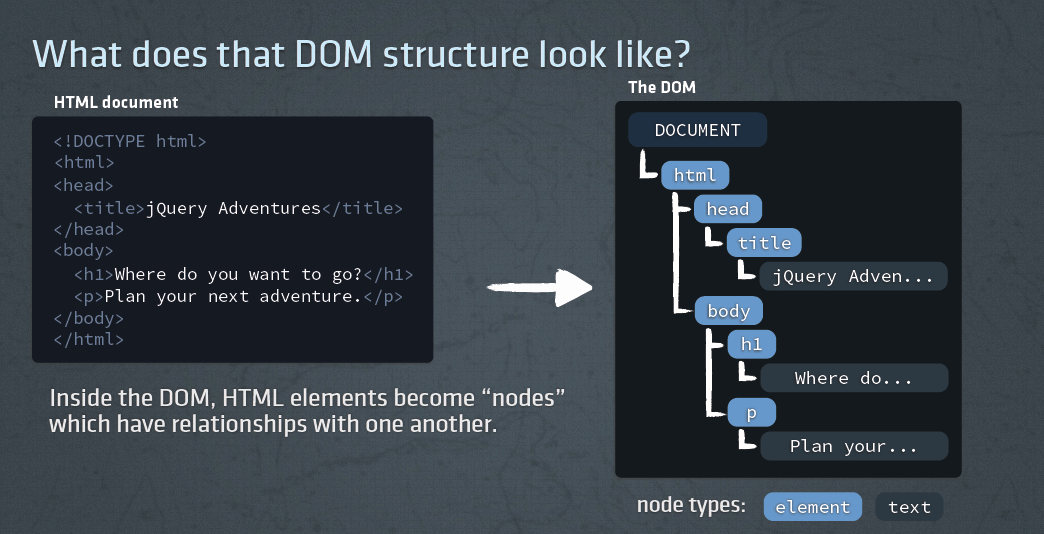
JavaScript can be used to:
JavaScript is often used to manipulate HTML elements.
To do so, you have to find the elements first. You can do this by:
| Method | Description | W3C |
|---|---|---|
| close() | Closes the output stream previously opened with document.open() | Yes |
| getElementsByName() | Accesses all elements with a specified name | Yes |
| getElementById() | Accesses the element with the specified id | Yes |
| getElementsByClassName() | Accesses all elements with a specified class name | Yes |
| getElementsByTagName() | Accesses all elements with a specified tag name | Yes |
| open() | Opens an output stream to collect the output from document.write() or document.writeln() | Yes |
| write() | Writes HTML expressions or JavaScript code to a document | Yes |
| writeln() | Same as write(), but adds a newline character after each statement | Yes |
id
var x = document.getElementById( "id1" );
var x = document.getElementsByTagName( "p" );
class
var x = document.getElementsByClassName( "myClass" );
document.getElementById( "id1" ).style.property = new style;<p id="id2">Hello World!</p>
<script>
document.getElementById( "id2" ).style.color = "blue";
</script>
If you are going to get the same element more than once, it is more efficient to store the requested element in a variable and use that variable instead.
<p id="id3">Hello World!</p>

<script>
var myParagraph = document.getElementById( "id3" );
myParagraph.style.color = "blue";
myParagraph.style.fontSize = "30";
</script>
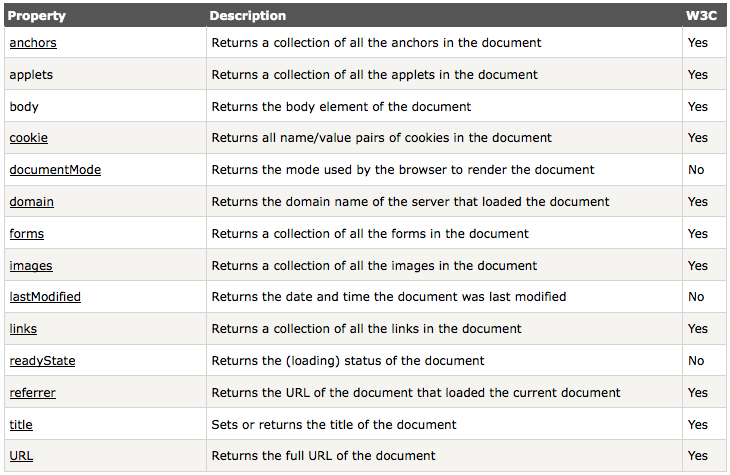
Objects can be partly made up of, or contain, other objects. Here is part of the browser's heirarchy of ready made JavaScript objects:
window
   |
   . parent              //the "parent" window or frame
   |
   . frames              //an array of frames in the window/frame
   |
   . location            //the URL of the document in the window/frame
   |
   . document            //the document in the window or frame
         |
         . anchors       //an array reflecting all the anchors in a document
         |
         . links         //an array reflecting all the links in a document
         |
         . forms         //an array reflecting all the forms in a document
             |
             . elements  //an array reflecting all the elements in a form
return = awindow.document.aform.elements[ 2 ].value;Statements such as this are common in JavaScript programming.
awindow refers by name to a window, document is the document in that window, aform is the name of a form in the document, elements[ 2 ] refers to the third element in the form and value will return the value of that element.
| Property | Description | W3C |
|---|---|---|
| color | Sets or returns the color of the text | Yes |
| direction | Sets or returns the text direction | Yes |
| font | Sets or returns font-style, font-variant, font-weight, font-size, line-height, and font-family in one declaration | Yes |
| fontFamily | Sets or returns the font face for text | Yes |
| fontSize | Sets or returns the font size of the text | Yes |
| fontSizeAdjust | Sets or returns the font aspect value | Yes |
| fontStyle | Sets or returns whether the style of the font is normal, italic or oblique | Yes |
| fontVariant | Sets or returns whether the font should be displayed in small capital letters | Yes |
| fontWeight | Sets or returns the boldness of the font | Yes |
| letterSpacing | Sets or returns the space between characters in a text | Yes |
| lineHeight | Sets or returns the distance between lines in a text | Yes |
| quotes | Sets or returns the type of quotation marks for embedded quotations | Yes |
| textAlign | Sets or returns the horizontal alignment of text | Yes |
| textDecoration | Sets or returns the decoration of a text | Yes |
| textIndent | Sets or returns the indentation of the first line of text | Yes |
| textShadow | Sets or returns the shadow effect of a text | Yes |
| textTransform | Sets or returns the case of a text | Yes |
| whiteSpace | Sets or returns how to handle tabs, line breaks and whitespace in a text | Yes |
| wordSpacing | Sets or returns the spacing between words in a text | Yes |
| Property | Description | W3C |
|---|---|---|
| background | Sets or returns all the background properties in one declaration | Yes |
| backgroundAttachment | Sets or returns whether a background-image is fixed or scrolls with the page | Yes |
| backgroundColor | Sets or returns the background-color of an element | Yes |
| backgroundImage | Sets or returns the background-image for an element | Yes |
| backgroundPosition | Sets or returns the starting position of a background-image | Yes |
| backgroundRepeat | Sets or returns how to repeat (tile) a background-image | Yes |
HTML DOM events allow JavaScript to register different event handlers on elements in an HTML document.
Events are normally used in combination with functions, and the function will not be executed before the event occurs (such as when a user clicks a button).
| Property | Description |
|---|---|
| onclick | The event occurs when the user clicks on an element |
| ondblclick | The event occurs when the user double-clicks on an element |
| onmousedown | The event occurs when a user presses a mouse button over an element |
| onmousemove | The event occurs when the pointer is moving while it is over an element |
| onmouseover | The event occurs when the pointer is moved onto an element |
| onmouseout | The event occurs when a user moves the mouse pointer out of an element |
| onmouseup | The event occurs when a user releases a mouse button over an element |
| Attribute | Description |
|---|---|
| onkeydown | The event occurs when the user is pressing a key |
| onkeypress | The event occurs when the user presses a key |
| onkeyup | The event occurs when the user releases a key |
| Attribute | Description |
|---|---|
| onblur | The event occurs when a form element loses focus |
| onchange | The event occurs when the content of a form element, the selection, or the checked state have changed (for <input>, <select>, and <textarea>) |
| onfocus | The event occurs when an element gets focus (for <label>, <input>, <select>, <textarea>, and <button>) |
| onreset | The event occurs when a form is reset |
| onselect | The event occurs when a user selects some text (for <input> and <textarea>) |
| onsubmit | The event occurs when a form is submitted |
| Attribute | Description |
|---|---|
| onabort | The event occurs when an image is stopped from loading before completely loaded (for <object>) |
| onerror | The event occurs when an image does not load properly (for <object>, <body> and <frameset>) |
| onload | The event occurs when a document, frameset, or <object> has been loaded |
| onresize | The event occurs when a document view is resized |
| onscroll | The event occurs when a document view is scrolled |
| onunload | The event occurs once a page has unloaded (for <body> and <frameset>) |
A JavaScript can be executed when an event occurs, like when a user clicks on an HTML element.
To execute code when a user clicks on an element, add JavaScript code to an HTML event attribute:
onclick = JavaScript<form name="myForm">
<a href="#" onmouseover="document.myForm.message.value='You are over link 1'";>Link 1</a> |
<a href="#" onmouseover="document.myForm.message.value='This is link 2'";>Link 2</a> |
<a href="#" onmouseover="document.myForm.message.value='And now... link 3'";>Link 3</a> |
<a href="#" onmouseover="document.myForm.message.value='mouseover detected on link 4'";>Link 4</a>
<br><br><br>
<input type="text" name="message" size="40" >
</form><head>
<script>
var MessageArray = [];
MessageArray[1] = "You are over link 1";
MessageArray[2] = "This is link 2";
MessageArray[3] = "And now... link 3";
MessageArray[4] = "mouseover detected on link 4";
var currentMessage = -1;
function showMessage( n ) {
if (n != currentMessage) {
document.myForm.message.value = MessageArray[n];
currentMessage = n;
}
}
</script>
</head>
<body>
<form name="myForm">
<a href="#" onmouseover="showMessage(1)";>Link 1</a> |
<a href="#" onmouseover="showMessage(2)";>Link 2</a> |
<a href="#" onmouseover="showMessage(3)";>Link 3</a> |
<a href="#" onmouseover="showMessage(4)";>Link 4</a>
<input type="text" name="message" size="40" >
</form>
</body>
| Property | Description |
|---|---|
| align | Sets or returns the value of the align attribute of an image |
| alt | Sets or returns the value of the alt attribute of an image |
| border | Sets or returns the value of the border attribute of an image |
| complete | Returns whether or not the browser is finished loading an image |
| height | Sets or returns the value of the height attribute of an image |
| hspace | Sets or returns the value of the hspace attribute of an image |
| longDesc | Sets or returns the value of the longdesc attribute of an image |
| lowsrc | Sets or returns a URL to a low-resolution version of an image |
| name | Sets or returns the name of an image |
| src | Sets or returns the value of the src attribute of an image |
| useMap | Sets or returns the value of the usemap attribute of an image |
| vspace | Sets or returns the value of the vspace attribute of an image |
| width | Sets or returns the value of the width attribute of an image |
Replacing an image already loaded onto a page is done by changing the image object's src attribute to either the URL of another image file or to the src of another image object. Here are two code examples:
document.images[0].src = "http://www.somehost.co.uk/images/myImg.gif";cacheimage = new Image();
cacheimage.src = "http://www.somehost.co.uk/images/myImg.gif";
firstimage = new Image();
firstimage.src = document.images[0].src;
document.images[0].src = cacheimage.src;
.
.
.
document.images[0].src = firstimage.src;Changing the URL of the image using the src property causes the new image to be loaded gradually onto the page. Replacement is not immediate.
<img src="simple0.jpg" width="257" height="75" name="sample" alt="simple image">
<form>
<input type="button" value="simple0.jpg" onclick="document.images[0].src = 'simple0.jpg'">
<input type="button" value="simple1.jpg" onclick="document.images[0].src = 'simple1.jpg'">
</form>Using the image object it is possible to begin loading both images as the page loads. Page loading is slowed down as both images are loaded and so the first image may take longer to appear. Once they are both loaded image replacement is very fast.
<script>
cache0 = new Image(257,75)
cache0.src = "cache0.jpg"
cache1 = new Image(257,75)
cache1.src = "cache1.jpg"
</script>
<img
src ="cache0.jpg"
width ="257"
height="75"
name ="sample">
<form>
<input type="button" value="simple0.jpg"
onclick="document.images[0].src = cache0.src">
<input type="button" value="simple1.jpg"
onclick="document.images[0].src = cache1.src">
</form>Since the <img> has a name attribute set to "sample" it is possible to refer to the image in the page using document.sample and avoid using the images array and indexes into it entirely.
<script>
cache0 = new Image(257,75)
cache0.src = "cache0.jpg"
cache1 = new Image(257,75)
cache1.src = "cache1.jpg"
</script>
<img
src ="cache0.jpg"
width ="257"
height="75"
name ="sample">
<form>
<input type="button" value="simple0.jpg"
onclick="document.sample.src = cache0.src">
<input type="button" value="simple1.jpg"
onclick="document.sample.src = cache1.src">
</form>We can use DOM selectors to select the <img>, using it's id or name for example, and attaching an event listener that will change the src attribute. This notation allows full separation of concern, by keeping JavaScript and HTML separate. Since the example above uses a name attribute, let's just use this. Note that since getElementsByName will return an array of all the elements with this name, we will use the index 0 to reach the element we need in this array. In this example, only one element will have this name, and the array will have a size of 1.
<img
src ="cache0.jpg"
width ="257"
height="75"
alt="picture used to demo change of src"
name ="sample">
<form>
<input type="button" value="simple0.jpg" id="button0">
<input type="button" value="simple1.jpg" id="button1">
</form>
<script>
cache0 = new Image(257,75)
cache0.src = "cache0.jpg"
cache1 = new Image(257,75)
cache1.src = "cache1.jpg"
document.getElementById("button0").addEventListener("click", function(){
document.getElementsByName("sample")[0].src = cache0.src;
//Note: We could also replace cache0.src with the filename in quotes
});
document.getElementById("button1").addEventListener("click", function(){
document.getElementsByName("sample")[0].src = cache1.src;
});
</script>
<body>

<script>
normal = new Image();
normal.src = "jsbnormal.jpg";
down = new Image();
down.src = "jsbdown.jpg";
up = new Image();
up.src = "jsbup.jpg";
over = new Image();
over.src = "jsbover.jpg";
</script>

<img src = "jsbnormal.jpg" name = "sample"
onMouseDown="document.sample.src = down.src"
onMouseOut="document.sample.src = normal.src"
onMouseOver="document.sample.src = over.src"
onMouseUp="document.sample.src = up.src" >

</body>
window.setTimeout( "javascript function", milliseconds );The window.setTimeout() method can be written without the window prefix.
The setTimeout() method will wait the specified number of milliseconds, and then execute the specified function.
The first parameter of setTimeout() should be a function.
The second parameter indicates how many milliseconds, from now, you want to execute the first parameter.
Wait 3 seconds, then alert "Hello":
setTimeout( function() {
   alert( "Hello" )
   }, 3000
);The clearTimeout() method is used to stop the execution of the function specified in the setTimeout() method.
window.clearTimeout(timeoutVariable)The window.clearTimeout() method can be written without the window prefix. To be able to use the clearTimeout() method, you must use a global variable when creating the timeout method:
myVar = setTimeout( "javascript function", milliseconds );Then, if the function has not already been executed, you will be able to stop the execution by calling the clearTimeout() method.
var myVar;

function myFunction() {
  myVar = setTimeout( function() {
     alert( "Hello" );
  }, 3000 );
}

function myStopFunction() {
   clearTimeout( myVar );
}