Web Design and Development
Tutorial 6 - A Simple Maths Game
Task 1 - Create your Web Page content
Create a file and save it on your home h: drive as tutorial7.html.
Important Notes: - No space in the filename
- Your file must have the .html extension
- If you save your work outside of your h: drive, it will be deleted
Your Web Pages should follow the following specifications:
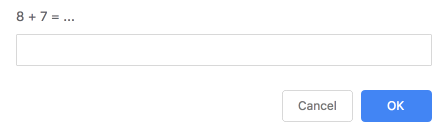
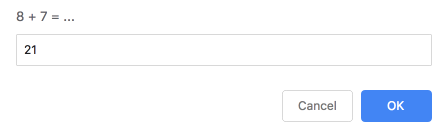
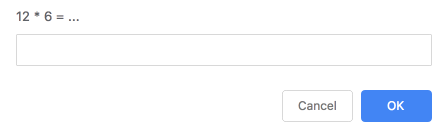
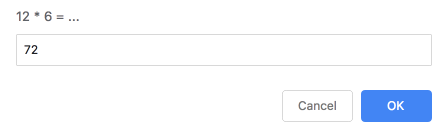
- Using JavaScript, prompt the user to answer 10 maths questions of your choice (e.g. 12 x 6, 26 - 7, etc. ) You should prompt the user 10 times with a different question each time.
- Record the answers and compare them to the correct answers.
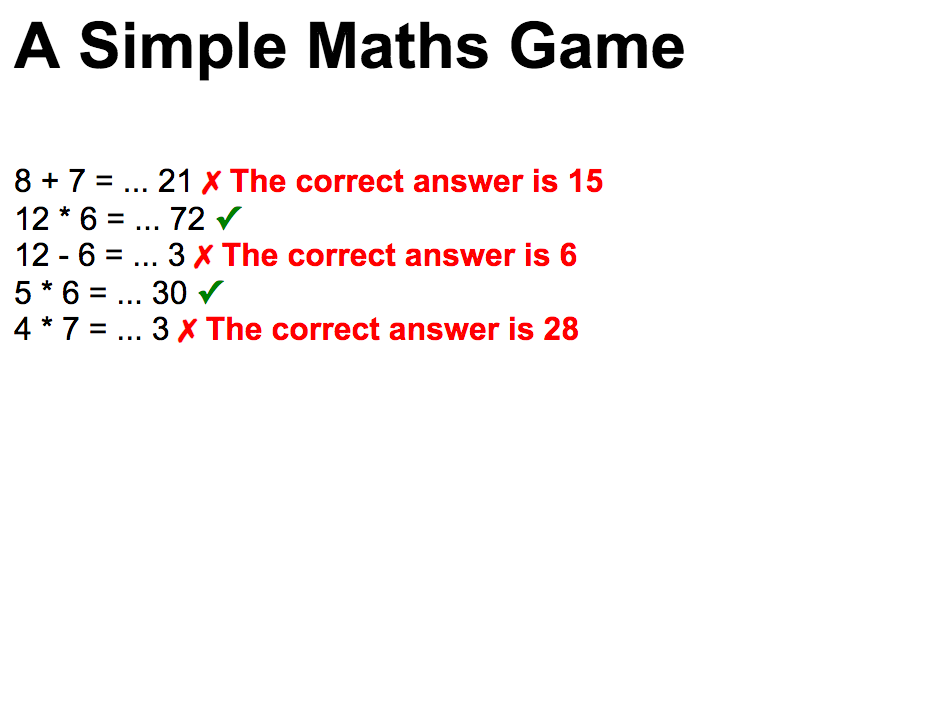
- After each answer or once the user has answered all 10 questions, display on the page each question, the users's answer and a message saying whether the answer was correct or not. In addition, use a tick symbol (✓) using the ✓ sequence if the answer is correct, and a cross symbol (✗) using the ✗ sequence
- In case of incorrect answer, also display the correct answer.
- The symbols and feedback to the user need to be in a different colour. Use CSS classes for this in an embedded or external Cascading Style Sheet.
See the images below to get an idea of the sequence:
Task 2 - Upload your page to the Web server and set the correct permissions
- Connect to compute0.westminster.ac.uk using sftp using WinSCP
- Check that your public_html folder has been created for you.
- If your folder is there, go inside that folder, and create a new folder for your Web Development work (You may for example call this folder webDev).
- If your folder is not there, you will carry out the following tasks of uploading your file to the Web Server next week. Just make sure that your work is saved in your h: drive, and you may also save it on a memory stick for extra safety. Please also log an IT Ticket (Log a Call) using the online Service Desk
- Upload your work to the webDev folder. Note, you will also need to upload any image that you have used on your page
- Check that your work is accessible online. The URL for the first page will be https://wxxxxxxx.users.ecs.westminster.ac.uk/webDev/tutorial7.html where wxxxxxxx is your registration number
Prepared by Anne-Gaelle Colom,
Last modified November 2018
Accessibility statement