Web Design and Development
Tutorial 6 - A simple maths game Part 1
Task 1 - Create your Web Page content
Create a file and save it as tutorial5.html.
Important Notes: - No space in the filename
- File must have the .html extension
-
Use an embedded or external style sheet and do NOT use inline styles.
HTML
Your Web Pages should follow the following specifications.
- Tutorial 6 for the title.
- 'A Simple Maths Game' as the page heading.
- Create the placeholder on your page for one maths question, followed by the placeholder for the user's answer to that question, and then another place holder for the feedback for that question: For example, use a span with the id="question1", a span with the id="answer1" and a span with the id="feedback1".
- You may put all this inside a separate paragraph, so that one question block looks like this:
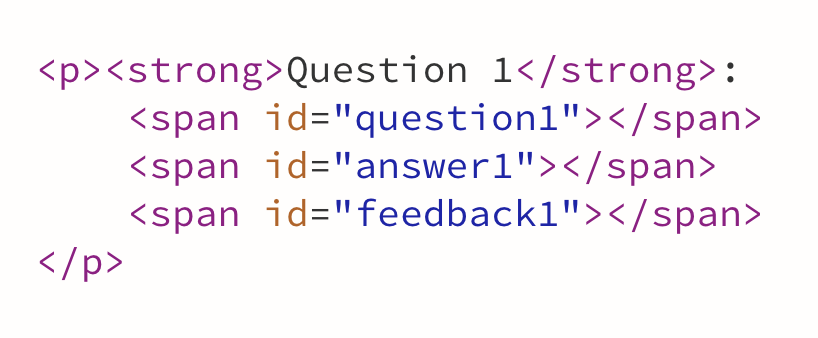
- Repeat this 10 times, and update the id so that they match the question numbers (question2, answer2 and feedback2 for the second question, etc.).
CSS
You will declare rules for 2 classes: correct and incorrect as follow:
- the correct class will display text in green colour and bold font
- the incorrect class will display text in red colour and bold font
JavaScript
Overview
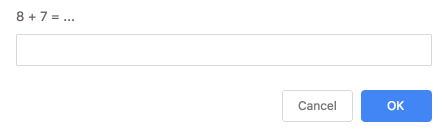
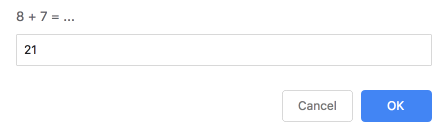
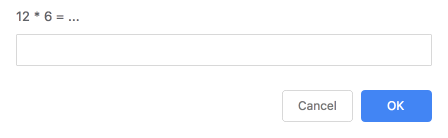
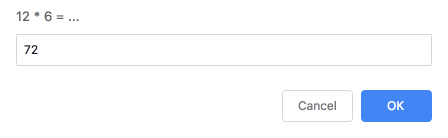
- Using JavaScript, you will prompt the user to answer 10 maths questions of your choice (e.g. 12 x 6, 26 - 7, etc. ) You should prompt the user 10 times with a different question each time.
- Record the answers and compare them to the correct answers.
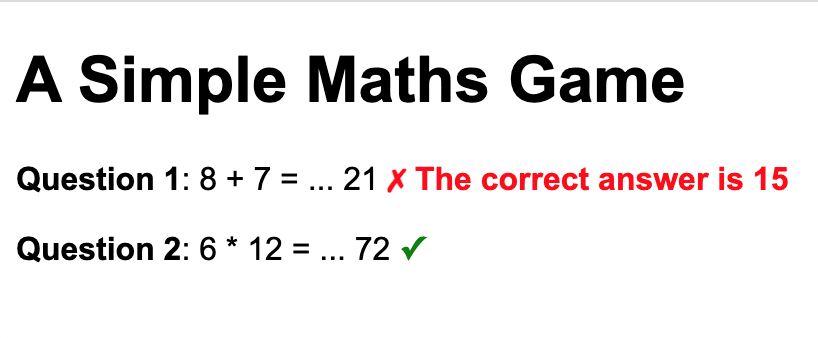
- After each answer or once the user has answered all 10 questions, display on the page each question in the question placeholders, the users's answer in the answer's placeholders and a message saying whether the answer was correct or not in the feedback's placeholders. In addition, use a tick symbol (✓) using the
✓ sequence if the answer is correct, and a cross symbol (✗) using the ✗ sequence if it is incorrect
- In case of an incorrect answer, also display what the correct answer is.
- The symbols and feedback to the user need to be in a different colours. Use 2 CSS classes that you declared earlier for this.
See the images below to get an idea of the sequence:
Process
- Let's start with 1 question...
- Prompt the user with your first question, and store their answer in a variable.
- Display the text of that question in the question1 span, and the user's answer in the answer1 span. For example, if your first question is "8 + 7 = ... ", you can add the question to the question1 span by typing
document.getElementById("question1").innerHTML="8 + 7 = ... ";
- Compare the answer with the correct answer
- If the answer was correct, add a tick symbol (
✓) in the feedback1 span and add the class "correct" to that span (you can use document.getElementById("feedback1").classList.add("correct") for this . If the answer was incorrect, add the cross symbol (✗) in the feedback1 span and add the class "incorrect" to that span
- Test your code once with a correct answer and once with an incorrect answer
- If your code works as expected, repeat this for the second question.
- Test your code with a combination of correct and incorrect answers, then all correct and then all incorrect.
- If your code works, you could carry on and copy the same code for the 8 remaining questions... but before that, let's make a few optimisations...
- You're asking the browser to select the same element (feedback1) 4 times. That's inefficient, as each time the browser has to navigate the DOM and find the element. Let's improve that by storing that element into a variable and calling that variable each time instead.
- We can see that we're writing the question text twice also. Let's imrpove that by also storing this in a variable and using this variable instead.
- Once all the optimisations are in, copy your code for the remaining 8 questions, updating the ids to match the question numbers to make sure the code all works fine.
- Test that you code works with a combination of correct and incorrect answers
- Let's make the game a little bit more interesting and declare a variable that will count how many questions were answered correctly. Let's start by giving this a value of 0, and increment it each time the user gives a correct answer.
- Now that you have the number of correct answers, let's multiply this by 10 to get a mark out of 100, and display this score in the total score placeholder. Oh wait! There isn't a score placeholder! Let's jump to the HTML section, and add this placeholder, for example, you can create a new paragraph with some text such as "You Score:" followed by a span with id="score"
- Now add the score to the score placeholder and test your code a number of times.
- Make sure you understand everything in your code as we will continue with improving this in week 7, by developing the 2nd part of this game. Also feel free to add more CSS to improve the look and feel.
Task 2 - Validate your code
- Use W3C Markup Validation Service to check if your code is correct before uploading it to the webserver. If it is not consult the validator's comments to correct your code. Keep checking until the code is 100% correct.
Task 3 - Upload your page to the Web server and set the correct permissions
- Upload your work to the webDev folder
- Check that your work is accessible online. The URL for the page will be https://wxxxxxxx.users.ecs.westminster.ac.uk/webDev/tutorial5.html where wxxxxxxx is your registration number.
Task 4 - Share your design with your peers and comment on other's work.
-
There are different ways you can implement the required interactivity. Share your solution with the rest of the class and take the opportunity to exchange ideas and receive feedback. To do so go to the module Padlet, upload a screenshoot of your page, and provide the URL of the page on your Unix account on the server.
Prepared by Anne-Gaelle Colom,
Last modified, February 2024 by Daphne Economou
Accessibility statement